

You know the drill: You pick up a nice new pair of Bluetooth headphones, can’t wait to get back into listening to your favorite playlist, and boom you hit the infamous pairing issue. Without connection you have no music, and no fun. But, what if I told you pairing your headphones to Bluetooth doesn’t need to be a headache anymore? Actually, it can span in just over some taps (or clicks) to get you up and running with your device. In this guide, we will explain how to pair Bluetooth headphones and whether it is your mobile phone PC laptop or gaming consoles
This is a step-by-step guide, where I will cover potential problems you might run into and beginner-friendly fixes so that you can enjoy wireless connectivity without any hassle.
What You’ll Learn:
- How to connect Bluetooth headphones to an iPhone
- Pairing Bluetooth Headphones With an Android Phone
- Using Bluetooth headphones with a PC and laptop
- Connect Bluetooth Headphones to PlayStation 5 (PS5)
- Together issues and how to fix them as they go about
- How to connect popular headphones from Sony, JBL and Beats
Now, let’s get started with some basics which would help you to connect your device.
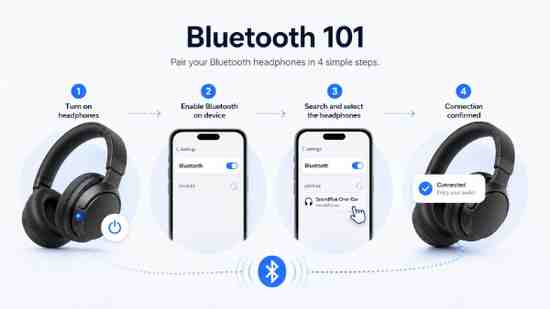
Bluetooth 101: How to Pair Bluetooth Headphones to Anything
Here are a few things you need to know about Bluetooth pairing before getting into device-specific steps. So what you have to always do first is:
Turn on Your Bluetooth Headphones:
Ensure that your headphones are turned on. When powered on for the first time, Bluetooth headphones usually enter pairing mode automatically. If not, press and hold down the power button for a couple of seconds until a flashing blue/red light shows up. So it means they are prepared for pairing.
Enable Bluetooth on Your Device:
You need Bluetooth to connect your headphones or another device. This is generally done through your device settings (whether, that be phone, laptop, or console). Make sure Bluetooth is turned on and ready to pair with new devices.
Search for Devices:
Turn on your Bluetooth and Headphones, go to the Bluetooth settings of your device, and check for available devices. Your headphones show on the paired device list from there you need to select your headphone name to pair.
Wait for Connection Confirmation:
Your device will then pair with your headphones after you choose them. You may hear a sound or see a message confirming the connection.
Pairing your Bluetooth headphones to an iPhone
Connecting Bluetooth headphones to an iPhone is one of the simplest things in the world. Here’s how to do it:
- Headphones: Connect your Bluetooth headphones and set them to pairing mode,
- On your iPhone, open Settings and then tap Bluetooth.
- Find your listed headphones under Other Devices and select their name.
- After a few seconds, you will hear a confirmation beep in your headphones when the connection is successful.
Tip: If your headphones feature the W1 or H1 chip, like AirPods, you’ll automatically pair when they’re in close proximity to your iPhone.
You can check the brands guide Apple Support – Bluetooth Pairing if you want to know more on How to Pair Bluetooth Headphones.
Pairing Bluetooth Headphones to Android Phone
And there you have it, how easy paired Bluetooth Headphones can work with an Android phone:
- Turn on your Bluetooth headphones and use pairing mode (you can tell because the light should be flashing).
- Open your Android smartphone’sSettings > Connections > Bluetooth outputs.
- Be patient until your headphones get listed as one of the Available Devices.
- Hit the name of your headphones, and it will connect.
Tip: For devices like JBL, Sony or some other brands you would need to download the correct app (for example JBL Headphones, Sony Headphones Connect) for more customization and features.
Connect Bluetooth Headphones to a Computer
In case you want to know how to pair Bluetooth headphones with a PC, follow this:
- Enable Bluetooth on your PC:
- Windows + I for Settings and go to Devices > Bluetooth & other devices Ensuring Bluetooth is enabled
- Go to Settings > Bluetooth on your device
- Activate your headphones and put them in pairing mode.
- Press on “Add Bluetooth or other device” and choose the Bluetooth option. Your computer will now look for Bluetooth devices that are near you.
- From the device list, choose your headphones, then in a few moments you will hear a confirming sound from your headphones
Tip: If your computer doesn’t have Bluetooth, you can purchase a Bluetooth USB dongle so that it is able to do this.
Connect your Bluetooth headphones to a Laptop
If you want to know how to pair Bluetooth headphones with your laptop, it is very similar to pairing them with a PC:
- Open your laptop’s Bluetooth settings.
- Turn the headphones on and enter pairing mode.
- Hover over Bluetooth in your Laptop’s settings and Click on Add Bluetooth or other device → Select Bluetooth
- Select your headphones when they appear and connect.
Tip: Make sure that Bluetooth drivers for your laptop are updated so that it would be easier when you are pairing a device.
Pair Bluetooth Headphones To Play Station 5 (PS5)
First off, the PS5 itself does not natively support Bluetooth audio per se, but you can connect Bluetooth headphones using a little extra effort.
- Use a Bluetooth transmitter plugged into one of the PS5’s USB ports
- Step 1: Power on your bluetooth headphones and put it in pairing mode.
- At this point, connect your headphones and the Bluetooth transmitter to each other.
- You can also plug wired headphones into the PS5 controller with the 3.5mm headphone jack.
Tip: If you use a Bluetooth transmitter to send sound to your headphones, try using one that has aptX low latency support so that audio lag isn’t an issue while gaming.
Common Pairing Issues
Users frequently mention that the Bluetooth headset is not connecting. We have some problems you may bump into during your Bluetooth headphone pairing that we also have a fix for!
Headphones Won’t Show Up
Be sure to switch your headphones into pairing mode (look for a blinking light). You can restart your headphones and the device you were pairing them with to see if they appear again.
Connection Drops or Fails
Check the battery level on your device and more importantly, the headphones as well. If the problem still continues, un-pair and re-pair your earbuds from Bluetooth settings.
No Sound or Very Bad Sound Quality
First things first: ensure your device volume is not muted. If the audio is muted, try to disconnect and reconnect or reset the Bluetooth connection.
Bluetooth Headphones Keep Disconnecting
Make sure your headphones are not connected to anything else. If they are, please disconnect those devices or turn Bluetooth off them. Also, update your Bluetooth drivers.
PlayStation 5 Won’t Connect To Bluetooth Headphones
If you struggle to connect Wireless headphones, note that you will also need a Bluetooth transmitter on the PS5 as it does not natively support Bluetooth audio either. Pick one that uses aptX Low Latency for a seamless experience.
Tips for Keeping Bluetooth Headphones in Working Order
To ensure your Bluetooth headphones remain in good working order, clean them regularly to remove dirt and earwax. Wipe the earpads with a softcloth, and wash removable ear tips according to the manufacturer’s instructions. Another thing you want to avoid doing is letting your headphones discharge all of the way. Rather, try to keep them charged as often as possible. If the battery simply is not holding a charge however well, it will be time to get a new one or increase your headphones!
Understanding Bluetooth Compatibility Across Devices
Bluetooth (4.0, 4.2, 5.0) Bluetooth 5.0 and other newer varieties will achieve a higher return on speed than Bluetooth, with a longer range of physical dimensions than its predecessors. When you are having trouble connecting (dropping or unable to connect) it is most likely because of differences in version. Examine the Bluetooth version on your device and headphones. Such as upgrading the Bluetooth driver or optimising pairing (if required), but you should have a probability with at least Up To Data range for good performance.
How the Bluetooth Technology works: In short
Bluetooth is a wireless technology that connects devices using radio waves. Bluetooth: sends signals to devices in short-range (typically 30 feet) detection. After being successfully paired, Bluetooth provides a continuous connection from your earbuds to your device so you can listen without interruption. If you are having a problem, coming close to your device or removing obstacles would lead to a good connection.
Steps To Pair Multiple Bluetooth Devices At The Same Time
If you need connections for multiple devices, there are some Bluetooth headphones that can connect to two or more devices at the same time (multi-point) This is especially helpful if you tend to jump between different devices e.g. phone and laptop. Though not all headphones support this feature however. Read your headphones’ user manual to check for multi-point support, so you can take advantage of it.
Bluetooth Headphones for calls: How To Enjoy Clear Audio
Bluetooth headphones are also good for calls, but call clarity does hinder with poor sound. Select headphones with noise-canceling mics for improved sound. It reduces the background noise and makes your voice clearer. First make sure to have all of the correct settings refined in regard to Bluetooth and also try resetting microphone issues, If you still face trouble connecting or having quality calls.
How to Extend Battery Life on Bluetooth Headphones?
One of the simplest tricks to enhance your Bluetooth headphones battery life is to switch them off when not in use. Turn on low-power mode if your headphones support this to increase battery life. In addition, do not discharge the battery completely. If you are going to use these headphones for a long time, charge them completely before moving on. In only a few models, you can charge them quickly without taking more than a quarter of the time and they allow many hours of use.
How to Reset Bluetooth Headphones
In case, you are unable to or dont know how to pair bluetooth headphones of yours, you can reform it to factory settings. One of the most common procedures is to reset Bluetooth headphones, which usually consists of pressing a combination of buttons (e.g., power and volume buttons) for 10-15 seconds. Refer to your model’s specific user manual for exact reset instructions.
Bluetooth Audio Codecs – All You Need to Know About
Bluetooth codec audio codecs affect sound quality at playback. Some of the typical codecs include SBC, AAC and aptX. And for those who care about sound quality, then find the headphones on which aptX HD or LDAC support is indicated. Ensure that devices support the same codec for the better audio experience. aptX sounds great on Android, and AAC is more fitting for iPhones.
Conclusion: Enjoy Hassle-Free Bluetooth Pairing
After this, you should have everything you need to be able to connect your Bluetooth headphones with all types of devices. These basics go with advances and difficulty shooting tips, and you won’t need to trouble concerning troublesome matching issues again.
If you hope to find a pair of strong Bluetooth headphones for under $100, then take advantage of the guide, best budget-range Bluetooth Headphones of EclectusPlus. If you play games, check out their guide on good gaming headphones to find a good match.
Now take your music, attend a call or get lost in your game with the clearest of sound without any wires to fight!


One thought on “How to Pair Bluetooth Headphones Without Any Hassle”