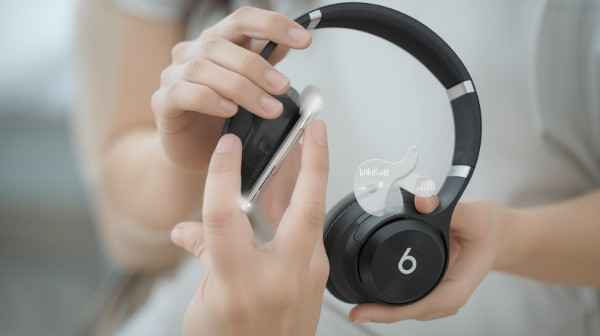
Have you ever tried to connect your Beats headphones and struggled? I sure have. Once you get over the steps, pairing Beats is actually a piece of cake. This guide will show you how to pair Beats headphones and get them connected with phones, tablets, computers, and more. I am your patient tech friend who has done this dozens of times, so I will keep it straightforward. Let’s dive in:
- How to activate pairing mode on different Beats models (earbuds and headphones) How to activate pairing mode
- Connecting Beats with an iPhone or iPad, and some of the bigger H1/W1 chip features.
- How to Pair Beats Headphones to Android devices (phones and tablets), also Fast Pair
- How to Pair Beats Headphones with a Windows PC or Mac, step-by-step
- Troubleshooting tips: If your Beats don’t pair or connect
- Resetting Beats headphones when needed.
Once these critical points have been checked, you will know how to pair Beats headphones and be able to stream music or calls via your Beats without any time delay.
When You Want to Enable Your Beats to Pair
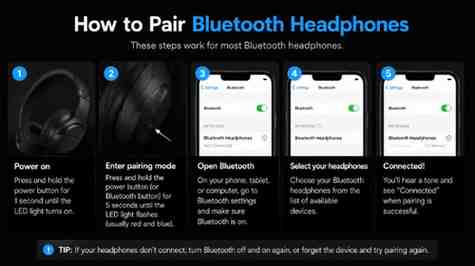
Well, before you get into “how to pair Beats headphones”, first connect your Beats; they must be in pairing (discoverable) mode. This mode allows your device to “see” the headphones over Bluetooth. The process can be model-dependent, but the basic principle is: Go into your headphones and press, holding just right/ into a blink or beep. For brand-new Beats, they usually automatically go into pairing mode the first time they turn on. Let’s break it down by model:
- Beats Studio Buds, Studio Buds+, Powerbeats Pro, Beats Fit Pro: Place the earbuds in the case and open the lid. Hold down the small button on the case until you see a blinking LED. Now the earbuds are discoverable.
- Beats Flex and BeatsX: Make sure that the earphones are off. After that, press and hold down the power button on the right module for around 5 seconds. The LED Light will flash, signalling pairing mode
- Powerbeats (non-Pro): Press and hold the power button on the left earbud until its light starts blinking.
- Beats Solo 3 / Solo 4 Wireless (On-Ear): With headphones powered off, press and hold the power button (which is typically on the right ear cup) for approximately 5 seconds. If all LEDs blink at the same time, you are in pairing mode.
- Beats Solo Pros and Beats Studio Pro: Push the power button. You need to get power on the headphones, and if they do not go into pairing mode automatically (many do when you first turn them on), press and hold the system or power button on the right earcup until the light is flashing.
When the white or multicoloured LED is flashing (or we hear a tone), it means that our Beats are in pairing mode, ready to be connected. Always keep them close to your devices, within a couple of feet, to avoid interference.
How to Pair Beats Headphones to an iPhone or iPad (iOS)
The W1/H1 chip in Apple devices makes connecting Beats even more seamless. In almost all instances, you just need to turn on your Beats and hold them close to the unlocked iPhone. As a result, an on-screen pop-up just pops up, and all you do is tap “Connect.” Here’s the step-by-step:
- Turn on Bluetooth on your iPhone: Go to Settings > turn BT on (or swipe down and make sure the Bluetooth icon is colored).
- Turn on Beats: They may be in pairing mode right away (if this is the first time), or initiate pairing mode (like you learned above).
- Keep Beats near the iPhone: Hold them a few inches away.
- Follow Prompt: You will see a dialogue with your Beats model name and image. Tap “Connect” when it appears.
- Connect to other devices: Once you establish a connection, your Beats will sync with any Apple device signed into the same Apple ID (thanks to iCloud integration). That means you only need to pair once, and all of your iPads, iPhones and Macs will recognise the Beats without another pairing.
Bonus: If you pair them with an iPhone running iOS 10 or higher, your Beats will automatically update firmware through the phone. That lets you avoid a manual update later.
Due to how tightly woven Apple’s ecosystem is, this will generally be a seamless process. If your iPhone does not see the Beats immediately, physically open the BT settings page [from settings] they will often be present there to tap. More often than not, I find it a matter of just a few taps on my iPhone screen to pair, no complicated steps necessary.
How to Pair Beats Headphones with Your Android Device
Pairing Beats to an Android phone or tablet is just as simple, but it can only be done via Settings, not through a pop-up. The general steps are: turn on Bluetooth on the Android device, ensure your Beats are in pairing mode and select the name of the Beats from the list. For example:
- Turn Bluetooth On In Android: Pull down from the top of the screen twice to get a full list and tap on the Bluetooth icon. Or head to Settings > Connections > Bluetooth and turn it on.
- To turn on Beats pairing mode: Refer to the above in the Pairing Mode section. Ensure that an LED is blinking.
- Scan for devices: At the Bluetooth menu (on Android, tap “Scan” or wait here). Under Available devices, you should see your Beats model (e.g. again “Beats Studio Buds” or “Powerbeats Pro”).
- Tap to connect: Choose the name of your Beats. It will show either the words Pairing/Connected for a very short time on the phone. Once done, you’re set.
If you do use new-ish Beats, like Studio Buds/Studio Pro, Android’s Fast Pair might go to work. If Fast Pair is supported, opening the case or powering on the headphones will prompt an instant pop-up notification on your Android device. You tap “Connect” in that pop-up, and it pairs straight away. This is the case if your Android has a version of Android 6.0 + and location services enabled. Super useful for pairing on the fly, without messing around in menus.
If you are using Android, you do not need a Beats app; however, Apple has released a Beats app for Android to check for firmware updates and settings. You do not need to do anything else typically, as it handles most users’ above steps. From my experience, just going to Settings -> Bluetooth and selecting the Beats does it. Beats will then display as “Connected” and ready to go.
How to Pair Beats Headphones To a Mac or Windows PC
How to pair Beats headphones to a computer is largely similar to phones, via Bluetooth settings on the system. If you know how to pair Beats headphones with phones, then it’s absolutely nothing for you to know how to pair Beats headphones with Max/Windows. Here’s what I do for each:
- On Mac (macOS), click the Apple logo > System Preferences > Bluetooth. Make sure Bluetooth is on. Next, turn on your Beats (it must be in pairing mode). In Bluetooth, you will begin seeing your Beats name being displayed on the device. Click Connect next to it. When it says “Connected,” your sound is routed to your Beats. They may show up in Control Centre (Handoff) with one tap if your Beats were already paired to that iPhone on the same Apple ID, but it’s pretty much a one-tap process regardless, otherwise.
- On Windows 10/11: Open Start > Settings > Devices > Bluetooth & other devices. Turn on Bluetooth. Remember that you need to (manually) update both of them in the future! (In Windows 11, you can open Bluetooth settings from the quick action button in the action centre.) Next, put your Beats into pairing mode. Windows will then look for it and display Beats as one of the options. Click it to pair. When Windows eventually says Connected, it means your Beats are ready to deal with audio.
What this means is that you will pair your Beats on a computer, and it should then remember the pairing afterwards so that when you turn them back on (the device is in range and Bluetooth is turned on), they should automatically connect. Otherwise, you can always unpair and reconnect via the same menu. According to Business Insider, many issues can be cleared by turning off and on the Beats and the computer.
How to Pair Beats Headphones to Other Bluetooth Devices
You can even use your Beats with TVs, gaming consoles, e-readers and more. The process is similar, turn the Beats into pairing, follow your device Bluetooth menu and tap on the Beats. To use Beats with a Samsung TV, navigate to TV Settings > Sound > Sound Output > Speaker List, turn on the Beats pairing mode and click on them when they appear. The specific menu steps differ by device, but it’s always based on the same idea.
Beats headphones can connect to any device that supports Bluetooth audio, including MP3 players, smartwatches or VR headsets. Depending on your device, you may also need to get an adapter if the console doesn’t support Bluetooth audio natively (some don’t without needing a transceiver). For most devices, it’s as simple as turning Bluetooth on, putting the Beats in pairing mode, and tapping on them. In short, the second method is one size fits all.
Troubleshooting: Beats Cannot Pair or Connect
Sometimes things don’t go smoothly. When your Beats headphones are not connecting, these are the fixes I reach for:
- Confirm Bluetooth and range: Verify that your device’s Bluetooth is on, the Beats are nearby (about ~30 feet) with little to no interference. Bluetooth is forgiving unless it gets around the walls or other electronics.
- Power cycle all of the things: turn off your Beats and your phone/computer, wait 5 seconds, then turn them back on. This reboot generally removes small bugs.
- Forgetting and re-pairing: Find your Beats in the Bluetooth list on your device, select Forget or Unpair, then try to pair again like it’s brand new. This ensures a clean slate.
- Check battery: A low battery can sometimes cause the onboard to not pair. Charge your Beats and device
- Check for interference: It could be either by moving away from crowded areas or away from other devices like microwave ovens, which may shield Bluetooth. Store the Beats and devices within a few feet of one another.
- Factory reset (last resort): Resetting returns the Beats back to factory settings (See next section.)
As a quick factory reset is actually something you should make as your last option, while normal pairing doesn’t work some more time, Business Insider notes that. And, in the end, if nothing works, Beats support can be of assistance. However, from my experience with the above, I should do it.
Resetting Your Beats Headphones
A reset can occasionally clear up persistent pairing issues. The reset method varies from model to model but includes the following general steps:
- Most Beats (Solo 3, Studio 3, Flex, etc.): Press and hold the power button and volume down button together for about 10 seconds until the LED light flashes. Then release.
- Beats Powerbeats Pro: place both earbuds into the case and open the lid. Press and hold the button within the case until the front light starts blinking.
- Other Beats models: You can typically reset them by holding the power button alone for 10+ seconds. When in doubt, consult the book.
It will be like you got a new pair of Beats, and they need to be paired again after the reset. I typically relay them immediately to test. Resetting old connections clears, as well as cached data, and this often eliminates weird pairing loops.
Additional Tips
A few more quick tips, and then we finish.
- Charging port: Use your Beats Solo 3 charging cable to charge your headphones, which is not reversible, unlike the non-reversible USB port. If these are connected to your phone and you try connecting to a laptop, you will have to First Disconnect from the phone or “Forget” it for the device switching feature to work.
- Beats App (for Beats Solo, Studio & Powerbeats Pro): Use the Apple Beats app on iPhone or Android to see battery levels, update firmware and rename headphones. Download it now for free in the App Store and Google Play. Sometimes, the act of using the app itself initiates in-the-background updates that yield a better connection.
- Watch out for automatic switching: If you are signed in to iCloud (with the same Apple ID) on any of these devices, your compatible Beats with H1 chip will also automatically switch between them. This helps with convenience, but it can create a problem when you see them pairing up to devices that you would not expect, both of which can be fixed in iOS Control Centre or by disabling automatic switching entirely in Bluetooth settings.
- Keep Both Devices Close: The general rule of thumb is to stay within a few feet of your Beats and paired device during pairing. Once connected, if line-of-sight is reasonably well adhered to, you get 30+ feet, but walls or bodies will reduce that.
- Update time: update your phone/tablet OS or roll out the latest device software through the Beats app… The latest name means fewer bugs.
Most importantly, connecting Beats is the same as connecting any other pair of Bluetooth headphones. It feels complicated the first time, but after doing it once or twice, it becomes second nature, and that’s how you know how to pair Beats headphones with any device. Hopefully, after these steps, you are able to feel comfortable pairing.
Check our guide on how to pair Bluetooth headphones with any device for more basic ideas.
FAQs
Q: Why do my Beats earbuds go into pairing mode?
A: A lot of the time, it’s because they are already associated with a device. Disconnect from a Phone or Laptop: If you connect your Beats to a phone or laptop, turn off and back on the headphones, or use the «Forget This Device» option with the previously paired device. Then repeat the pairing-mode steps. You may need to keep holding it for about 5–10 seconds until the light flashes. Make sure that the rechargeable battery is working if it requires charging.
Q: How to Connect Beats Headphones with Other Devices?
Q: First, put the Beats in pairing mode (see above). Now, on the new device (phone, tablet, PC, etc.), check its Bluetooth settings for the Beats’ name. Tap to connect. If your Beats were previously paired to another device and auto-connected, you may need to “Forget” them in that old device first. From there, pairing to a new device should work as normal.
Q: My Beats are connecting to my iPhone automatically. Why?
Q: Beats models with Apple’s H1 or W1 chip (like Solo Pro, Studio Pro, and many Beats earbuds) auto-popup connection dialogue on iPhone or Apple device. Your iPhone can then see the Beats as soon as they turn on, presuming they’re already paired to your iCloud account before. This is a part of that incredible integration with the Apple chip. Simply click “Connect” when the prompt pops up, or navigate into Bluetooth settings if not.
Q: Beats paired, but nothing to hear. What’s wrong?
Q: I hear a very low sound while using my Beats Flex on calls. Make sure too that the correct audio output is selected (on some computers, you merely will like to pick Beats as Associate in Nursing audio device). If nothing is still being heard, re-pair, on Bluetooth settings select the Beats, then Disconnect or remove and reconnect. Last but not least, ensure that the Beats are not paired to another enabled device (such as a mobile phone or TV) at the same time.
Q: Can I connect two devices to my Beats at the same time?
Q: Can you get audio on two devices actively connected to Beats headphones? They remember a lot of paired devices, but only output audio to one at a time. If you need to transfer the sound to a different device, play/pause on one and connect to the other. Some Beats (and iPhones) have a quick-switch function in the control centre, but most of the time, you do it manually.
Q: How do I know if my Beats are pairing?
Q: Typically, you get a blinking light or a tone through the headphones. For instance, when flashing all LEDs to the Beats Studio 3 (wired version) or enabling a blinking indicator on the neckband of the Beats Flex in the case of earbuds inside, they’ll be needed to trigger their case light. If the light is solid, that means they are connected to a device. Flashing means they’re discoverable.
Beats support and their manuals offer model-specific info, so if you have questions or run into trouble, that’s the place to reach for. But following the above steps, I am sure that now you know how to pair Beats headphones with any device reliably. Enjoy your music!